

Before you start: a Klarity workspace. Assessing several related processes at once gives the best view of where to invest.
Who it’s for
Automation and COE teams, transformation leads, and operations leaders deciding where to invest automation effort.What you get
The Automation Assessment template identifies automation opportunities within the process, gives recommendations for each, estimates ROI, and rates implementation difficulty.Walkthrough: assessing a process for automation
Say your COE is looking at order processing to decide where automation pays off.1
Decide your scope and set up the node(s)
Assessing several related processes (or a whole value stream) gives the best read on where to invest — but capture current state at individual process nodes (recommended) so each one is clean. Set up the node(s) in the Process Index.
2
Capture the process(es)
Use Companion, the AI Interviewer, or file upload. See Current State Discovery.
3
Review and refine the capture
Confirm the steps, systems, and time/volume attributes — automation ROI leans on accurate time-spent and error signals.
4
Generate the automation assessment
Three ways — pick based on how packaged vs. custom you want it: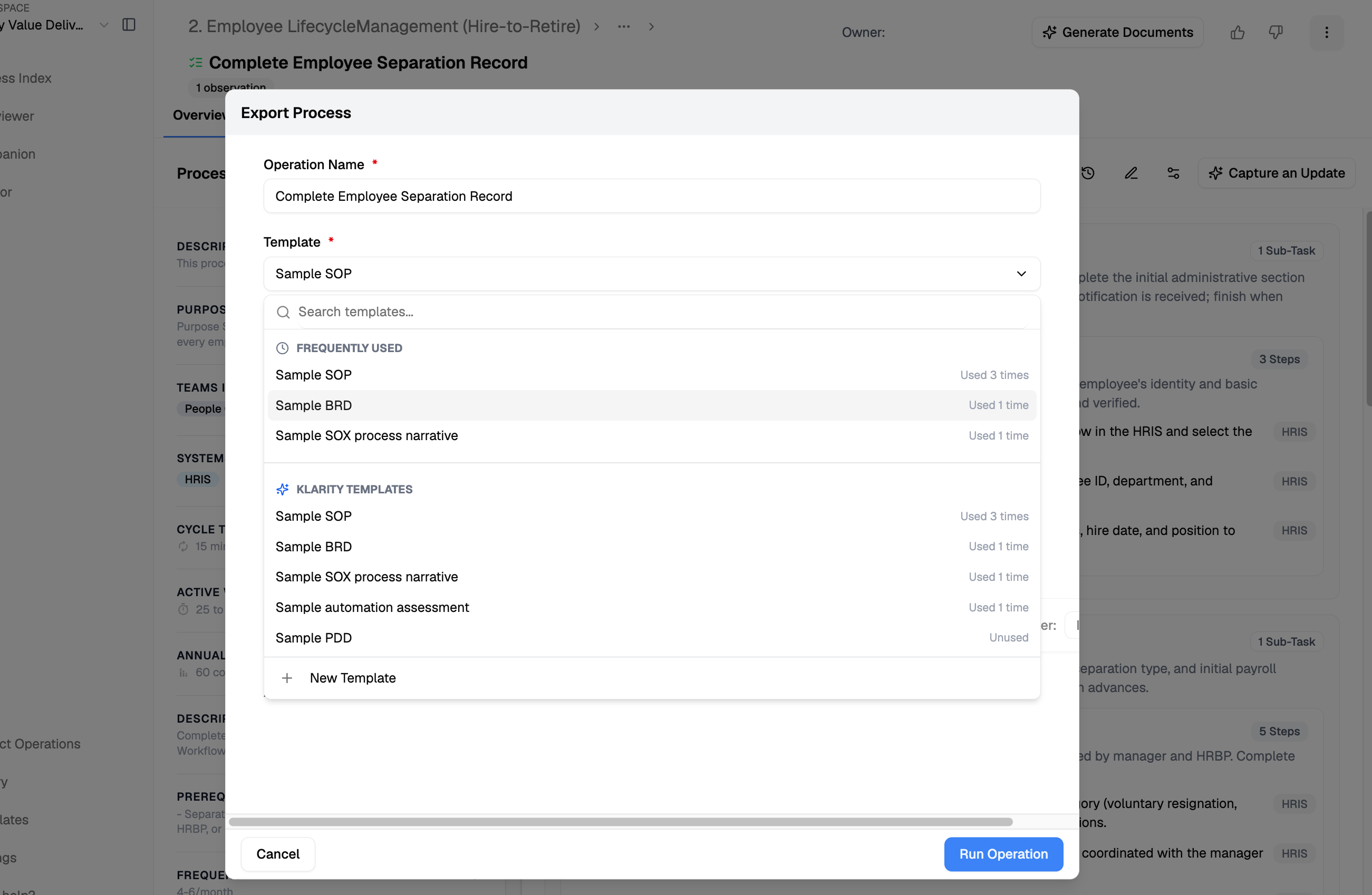
- From a template (packaged): from the process node, click Generate Documents (or, from the Artifact Operations page, + Operation in the top right), then select the Automation Assessment template and your capture, and generate.
- With Advisor: run a single-process assessment, or broadly rank automation potential across a value stream in one pass.
- With the Klarity MCP (your own platform): connect the MCP to your client (Claude, etc.), query your workspace as a company brain, and build your own ranking or assessment.
Template vs. Advisor vs. MCP: the template is the fastest packaged output; Advisor is best for a single or broad assessment on demand; the Klarity MCP lets you query the company brain from your own platform and build exactly the ranking you need.
5
Read the assessment
Each opportunity comes with a recommendation, an ROI estimate, and an implementation-difficulty rating.
6
Prioritize
Rank ROI against implementation difficulty to build your automation backlog — quick wins first.
7
Scope the top opportunities
For each one you pursue, have Advisor outline what an automation would need to handle — including the edge cases and exceptions.
8
Design the future state
Use Advisor and the Template Designer to produce future-state designs, BRDs, and change materials for the opportunities you build. When one graduates into a project, pair it with SDLC & PMO.
Advisor prompts
Rank automation potential
Scope an automation
ROI and difficulty
Tips
- Assess across several related processes to spot patterns worth automating once and reusing.
- Pair with a BRD (see SDLC & PMO) when an opportunity graduates into a build.
Related
Running an Advisor analysis
Surface insights and opportunities across your processes.
Using and editing templates
The Templates Editor and how output templates work.